The Process For TPMS Desktop Installation
July 15, 2026
This document will walk the user through the download and installation process for TPMS Desktop. Please visit https://www.bartecusa.com/tpms-desktop to download the latest version of TPMS Desktop.
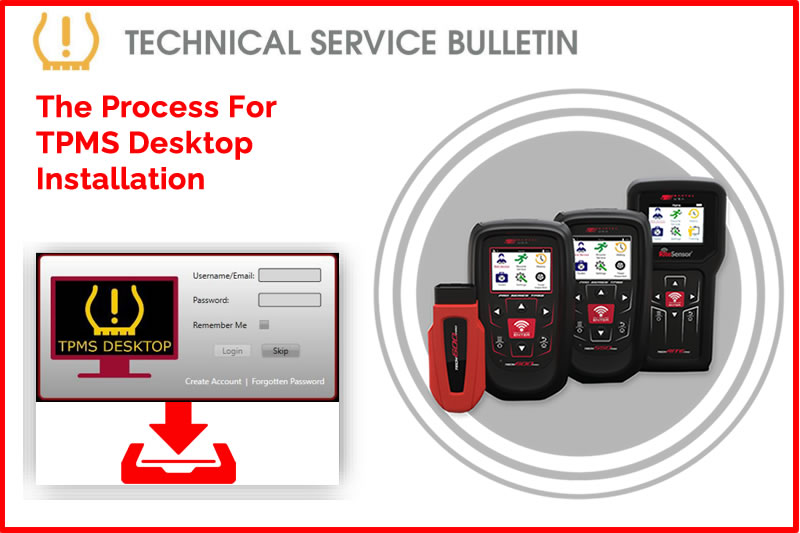
Process:
- Proceed to https://bartecusa.com/.
- On the top right of the screen select Download TPMS Desktop or alternatively go to https://www.tpmsdesktop.us/.
- Select the Large image on the right of the screen to initialize the download.
- Open the “setup.exe” file typically saved in the “Downloads” folder. a. Depending on the web browser your download could appear in 3 different locations within the browser:
- Chrome: Bottom left corner you will see the file name “Setup”.
- Firefox: In the upper left corner select the blue down arrow and you will see the file name “Setup”.
- Edge: In the bottom middle of the screen, you can either select to open the file or show it in folder.
- Once installed, the program will open automatically.
- Log into your current Bartec tools user account. Or create a new account.
- You can review what TPMS Desktop has to offer:
- Vehicle Lookup i. Sensor Coverage ii. Service Kit information
- Tech200PRO i. Today’s Records
- Placard Programming i. Transactions
- Inspection Reports i. Transferred vehicle records from the tools.
- Update f. Desktop Settings i. Setup Auto Updates/View Logs ii. Sensor ID Format: Hex/Dec/Both iii. Tread Depth Unit: Inch/Millimeters iv. Pressure Unit: BAR/PSI/kPa v. Temperature Unit: °C or °F
Need help getting a Certificate Bundle? E-mail our sales team at sales@bartecusa.com, or call [855]877-9732. Need help updating your Bartec TPMS Tool? E-mail our Tech Support Team at help@bartecusa.com, or call [866]407-8767.
#Bartec365 #TPMS #TPMSTools #TPMSSensors #RiteSensor #TPMSSoftware #TPMSSupport #BartecTPMS #TheTrustedBrand
Other Articles
Bartec TPMS Release Their Latest Software 9.0
October 20, 2026
Visit Bartec TPMS At SEMA 2026 To Win Awesome Prizes
October 19, 2026
Three Weeks To Go Until SEMA 2026 & We Are Getting Closer
October 14, 2026
Discover What Is New With TPMS At The Sema Show 2026
October 13, 2026
Oktoberfest With Bartec TPMS At The SEMA Show 2026
October 12, 2026
Bartec TPMS To Highlight TPMS Diagnostics At 2026 SEMA Show
October 6, 2026
New TPMS Tool Update Technology At The SEMA Show 2026
October 5, 2026
One Month To Go Until The SEMA Show 2026
October 3, 2026
Bartec TPMS Heads to SEMA Show 2026
October 2, 2026
Take Tire Inspections To The Next Level With The Tread-Rite Tool
September 24, 2026
 Bartec USA LLC